Apple Wallet
Get Started
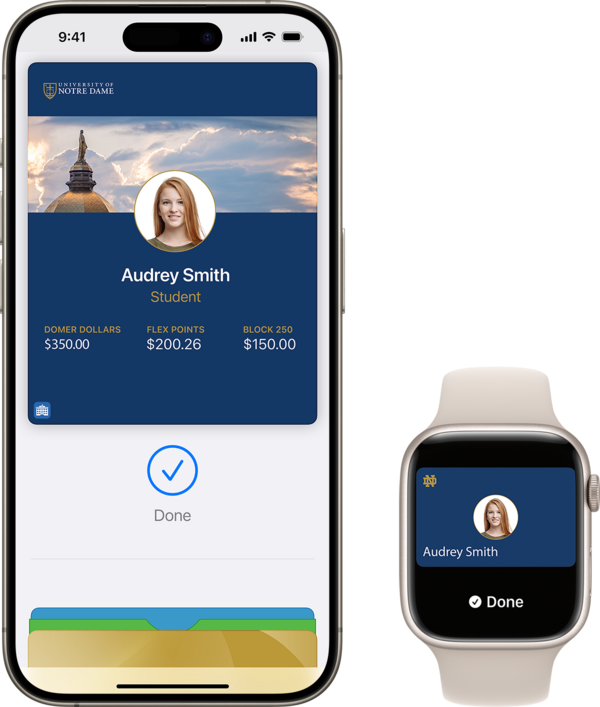
Your Irish1Card on iPhone or Apple Watch will work everywhere your current Irish1Card does. A simple tap of the mobile device you are already carrying will replace the need to use your existing card. Follow these easy steps to configure your device to use the digital Irish1Card in Apple Pay on your iPhone and Apple Watch. If you have a physical card today it will be deactivated when your new mobile ID is activated.
 |
If you use an Apple Watch, repeat the Add to Wallet step. |

Note: Upon activation of your new Irish1Card, it can take some systems up to 24 hours to be updated. Please allow 30 minutes before using your new Irish1Card at a door reader.
If you have a physical card today it will be deactivated when your new mobile ID is activated.
Tips
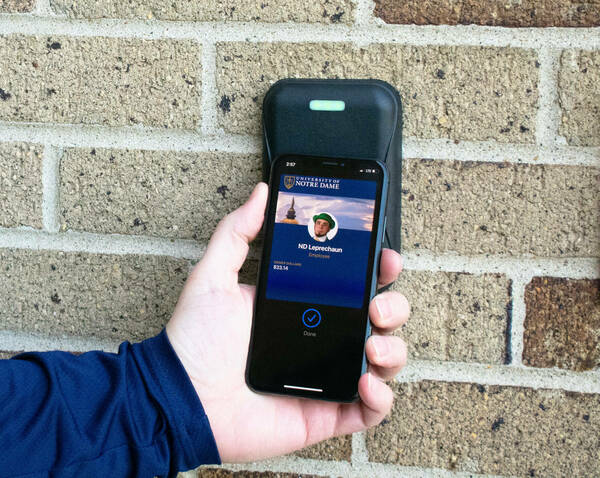
- Touch the top of the back of your iPhone to the reader
- Touch the face of your Apple Watch to the reader
- Devices in Express Mode can be asleep when offered up to the reader
- You do not need to open Apple Pay or double-tap the home button
- Unlocked door readers will still read your Irish1Card, this can be a great way to practice offering up your device correctly
- It can take up to 24 hours for all systems to be updated when you activate a new Irish1Card, please allow 30 minutes before using any door readers.
Top Questions
- What if my battery dies?
- Why am I getting a "Could not add card error"?
- What happens if I lose my device?
- I got a new phone, what do I do?
- Will it deactivate my plastic Irish1Card?
- Will it work with my case?
- A reader I use doesn't work with tap, what do I do?
- How can I view my NDID number?
- What if my battery dies?
Apple devices will be configured in Express Mode by default which also enables the Power Reserve feature. A phone with Power Reserve enabled will still be able to scan an Irish1Card for up to 5 hours after the phone shuts off from low battery. More info: https://support.apple.com/guide/security/express-cards-with-power-reserve-sec90cd29d1f/web
- Why am I getting a "Could not add card error"?
If you have received the error once, try pressing the Add to Wallet button again.
If you are still receiving the error, make sure that you are not sharing an iCloud account with anyone else who has enrolled an Irish1Card in Apple Pay. An iCloud account may only be associated with one Irish1Card.
If the error still persists more help can be provided by contacting the Irish1Card Office via email idcard@nd.edu or phone (574) 631-7814. Business hours are Monday - Friday: 8:30am - 5:00pm.
- What happens if I lose my device?
If you lose your device you need to report it lost, this will deactivate the lost Irish1Card. After your lost Irish1Card is deactivated, you can re-activate it on a new device following the initial setup instructions.
- You should use Find My iPhone to suspend or deactivate your Irish1Card in Apple Wallet. Instructions for Lost/Found Apple devices and Find My iPhone are located at https://support.apple.com/en-us/HT201472
- During Irish1Card Office hours (Monday - Friday: 8:30am - 5:00pm) contact the Irish1Card office at (574) 631-7814 to notify us to deactivate the card in the Wallet for that device.
- You can reactivate a found device that was suspended via iCloud.com or contact the Irish1Card Office Monday - Friday: 8:30am - 5:00pm if deactivated by the Irish1Card Office.
- I got a new phone, what do I do?
- If you still have your old device deactivate the Irish1Card there
- Open Apple Pay
- Select the Irish1Card
- Press the i logo to view the back of the card
- Scroll to the bottom and press the Remove button to delete the card
- If you do not still have the old device, report your Irish1Card lost using the steps mentioned above
- Follow the initial setup steps to install Get Mobile on your new device and activate your Irish1Card there.
- If you still have your old device deactivate the Irish1Card there
- Will it deactivate my plastic Irish1Card?
Yes. There is no need for you to turn in or destroy your plastic Irish1Card, but once you activate it on your iPhone or Apple watch, your existing card will no longer function.
Having the Irish1Card active on both a mobile device and in plastic form has been identified as a security risk, only one form at a time may be used.
- Will it work with my case?
Yes. While testing we have not encountered any cases that disrupted the function of the Irish1Card.
- A reader I use doesn't work with tap, what do I do?
All readers on campus will work with the digital Irish1Card. If you find a reader is currently not working correctly, please report it to your building manager or the Card Office so they can begin the process of getting it repaired.
- How can I view my NDID number?
Yes, when you open the Wallet app and select your Digital Irish1Card, click the ⓘ in the upper right corner. Look for the ID# Field, this is your NDID.
More Questions?
Check the Irish1Card in Apple Wallet FAQ